Public WiFi Security Risks: 7 Ways to Stay Safe in 2026
Disclosure: Some links in this article may be affiliate links. If you make a purchase through them, I may earn a small commission at no extra cost to you.

Photo by cottonbro studio — Pexels
I was sitting in a Starbucks in downtown Seattle last year, doing some online banking on their free WiFi. Halfway through, a security researcher friend who happened to be with me pulled out his laptop and — with my permission — showed me exactly how easy it was to see my unencrypted traffic. Took him about 45 seconds. That was the last time I ever used public WiFi without protection.
Free WiFi is everywhere now. Coffee shops, airports, hotels, libraries, even grocery stores. And most people connect without thinking twice. But that convenience comes with real risks that aren't theoretical — they happen every single day.
How Public WiFi Attacks Actually Work
Let's get specific about what can go wrong. These aren't hypothetical scenarios from a security textbook — they're active techniques used in the wild right now.
Man-in-the-Middle (MITM) Attacks
This is the classic one. An attacker positions themselves between you and the WiFi router, intercepting everything that passes through. On an unencrypted network, they can read your emails, see which sites you visit, and capture login credentials sent over HTTP.
Tools to do this are freely available. I won't name them here, but a motivated teenager with a laptop and a YouTube tutorial could pull this off in under 10 minutes. That's not an exaggeration.
Evil Twin Networks
Ever noticed two WiFi networks with almost identical names at an airport? Something like "Airport_Free_WiFi" and "Airport_Free_WiFi_5G"? One of them might be fake — set up by an attacker to mimic the legitimate network.
When you connect to an evil twin, all your traffic routes through the attacker's device. They see everything. And your phone might auto-connect to it if you've previously joined a network with a similar name. Pretty sneaky.
Packet Sniffing
On an open (unencrypted) WiFi network, your data travels through the air as radio waves. Anyone within range can capture those packets with the right software. It's like having a conversation in a crowded room — anyone who wants to listen, can.
HTTPS helps a lot here (more on that below), but not everything on your device uses HTTPS. Some apps, background services, and DNS queries may still leak information.

Photo by Tima Miroshnichenko — Pexels
Session Hijacking
Even if an attacker can't see your password (thanks to HTTPS), they might grab your session cookie — the token that keeps you logged in after authentication. With that cookie, they can impersonate your active session on sites like email or social media without ever needing your credentials.
This attack became famous with a Firefox extension called Firesheep back in 2010. The tool is long gone, but the technique lives on in more sophisticated forms.
Wait, Doesn't HTTPS Fix Everything?
Short answer: it helps a lot, but no.
HTTPS encrypts the data between your browser and the website. So if you're on a banking site with HTTPS, an attacker can't read your account number or password in transit. That's genuinely good news, and the web has moved heavily toward HTTPS — over 95% of pages loaded in Chrome now use it.
But HTTPS doesn't protect you from everything on public WiFi:
- DNS queries often aren't encrypted, revealing which sites you visit (though DNS-over-HTTPS is slowly changing this)
- Not all apps enforce HTTPS properly — some mobile apps still have sloppy certificate validation
- Metadata like connection timing, data volume, and server IP addresses are still visible
- SSL stripping attacks can downgrade your connection from HTTPS to HTTP if you're not paying attention
HTTPS is a critical layer, but it's not a substitute for other precautions on untrusted networks.
7 Ways to Stay Safe on Public WiFi
Here's what I actually do every time I connect to a network I don't control.
1. Use a VPN (This Is Non-Negotiable)
A VPN encrypts all traffic between your device and the VPN server. Even if someone is sniffing packets on the WiFi network, all they see is encrypted gibberish. It's the single most effective tool for public WiFi safety.
I keep my VPN set to auto-connect on any network that isn't my home WiFi. It adds maybe 10-15ms of latency — barely noticeable — and the peace of mind is worth it.
Not all VPNs are equal, though. Free VPNs often log your data and sell it. Stick with reputable paid providers that have been independently audited. Check our VPN comparison guide for specific recommendations.
2. Verify the Network Name
Before connecting, ask a staff member for the exact network name and password. Don't just pick the strongest open signal. Evil twin attacks rely on people connecting to the wrong network without checking.
3. Turn Off Auto-Connect
Your phone remembers networks and reconnects automatically. That's convenient at home, dangerous everywhere else. Go into your WiFi settings and disable auto-join for any public network you've previously connected to. On iPhone, it's under Settings > WiFi > [network name] > Auto-Join. Android varies by manufacturer, but it's usually in the network details.
4. Disable File Sharing and AirDrop
On a public network, file sharing services make your device discoverable to others. Turn off AirDrop (set to "Contacts Only" or "Off"), disable SMB file sharing on Windows, and turn off Bluetooth if you don't need it.

Photo by Tima Miroshnichenko — Pexels
5. Stick to HTTPS Sites
Look for the padlock icon in your browser's address bar. Most major sites use HTTPS by default now, but some smaller sites still don't. Consider installing the HTTPS Everywhere extension (now built into most browsers) or enabling "HTTPS-Only Mode" in Firefox/Chrome settings.
6. Don't Access Sensitive Accounts
Even with a VPN, I avoid doing online banking or accessing medical records on public WiFi if I can help it. Maybe I'm overly cautious — probably am, honestly — but some things can wait until I'm on a trusted network. If you must access sensitive accounts, make sure two-factor authentication is enabled on them first.
7. Use Your Phone's Hotspot Instead
This is my go-to when I need to do something sensitive away from home. Your phone's cellular connection is already encrypted between your device and the cell tower. Tethering your laptop to your phone's hotspot is significantly safer than any public WiFi network. Most phone plans include enough hotspot data for occasional use.
Special Risks: Hotels, Airports, and Conferences
Hotel WiFi is often worse than coffee shop WiFi from a security perspective. Many hotels use captive portals with zero encryption, and some even inject ads or tracking pixels into your browsing. I've seen this myself at a business hotel chain — extra JavaScript injected into every page I loaded. Gross.
Airport WiFi is a prime hunting ground for attackers because travelers are distracted, often in a rush, and connect to whatever network pops up first. If you travel frequently, a VPN on your phone and laptop is absolutely essential.
Conference WiFi might be the riskiest of all, especially at tech conferences where hundreds of security-aware (and sometimes mischievous) people share one network. DEF CON famously runs a "Wall of Sheep" display showing credentials captured from unprotected attendees. Don't be a sheep.
What About Cellular Data — Is It Safe?
Much safer than public WiFi, yes. Cellular connections (4G/5G) use strong encryption between your device and the cell tower, and intercepting them requires expensive, specialized equipment — not something a random person at Starbucks has.
That said, cellular isn't bulletproof either. Government-level surveillance can intercept cellular data, and your carrier can see your traffic. For most people in most situations, though, cellular is dramatically more secure than public WiFi.
Quick Reference: Public WiFi Safety Checklist
| Action | Priority | Difficulty |
|---|---|---|
| Enable VPN before connecting | Critical | Easy |
| Verify network name with staff | High | Easy |
| Disable auto-connect for public networks | High | Easy |
| Use HTTPS-only mode in browser | High | Easy |
| Turn off file sharing / AirDrop | Medium | Easy |
| Avoid sensitive accounts on public WiFi | Medium | Easy |
| Use phone hotspot for sensitive tasks | Medium | Easy |
| Enable 2FA on all important accounts | Critical | Easy |
| Keep OS and apps updated | High | Easy |
| Use a firewall (built-in is fine) | Medium | Easy |
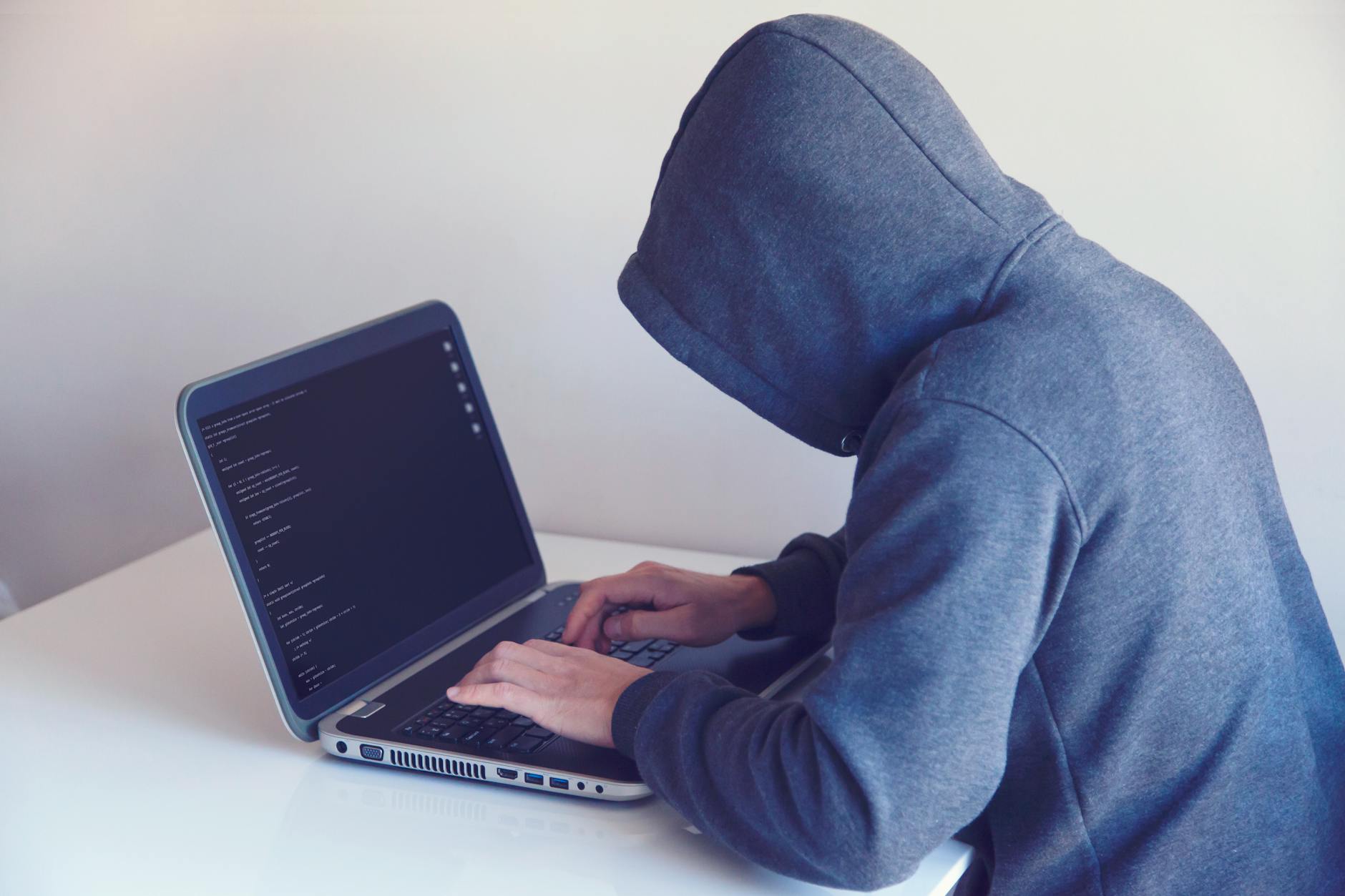
Photo by Nikita Belokhonov — Pexels
FAQ: Public WiFi Security
Can someone hack my phone through public WiFi?
Directly hacking your phone through WiFi alone is unlikely if your OS is up to date. The bigger risk is intercepting your data in transit — passwords, session tokens, personal information. Keep your phone updated, use a VPN, and the risk drops to near zero.
Is it safe to use public WiFi with a VPN?
Mostly, yes. A good VPN encrypts all your traffic so that anyone monitoring the network sees nothing useful. The remaining risks are minimal — things like a compromised VPN provider or zero-day vulnerabilities. For practical purposes, VPN + public WiFi is safe enough for nearly everything.
Should I use public WiFi for work?
If you have a company VPN, connect to that first — then you're fine. If your company doesn't provide a VPN, consider getting a personal one or using your phone's hotspot. Most corporate security policies explicitly discourage using public WiFi without a VPN, and for good reason.
Does forgetting a network make me safer?
Yes. When you "forget" a network on your device, it stops trying to auto-connect to it. This prevents your device from accidentally joining a rogue network with the same name (evil twin). Get in the habit of forgetting public networks after you're done using them.
The Real Talk
Am I saying never use public WiFi? No. I still use it all the time — I'm just not reckless about it. A VPN running in the background, auto-connect disabled, and basic awareness of what you're doing online. That's 95% of the battle right there.
The people who get burned are the ones who connect to any open network, log into their bank, and never think about who else might be watching. Don't be that person. A few simple habits — most of which take less than a minute to set up — make public WiFi reasonably safe for everyday use.
Want to lock things down further? Make sure you're running good antivirus software, using a password manager with unique passwords for every account, and know how to spot phishing attempts. Security is layers — and each one makes the attacker's job harder.


Comments
Post a Comment